Git for Beginners: Basics and Essential Commands
GIT is smart storage system for code to save snapshots, track changes... it like time machine for your code.
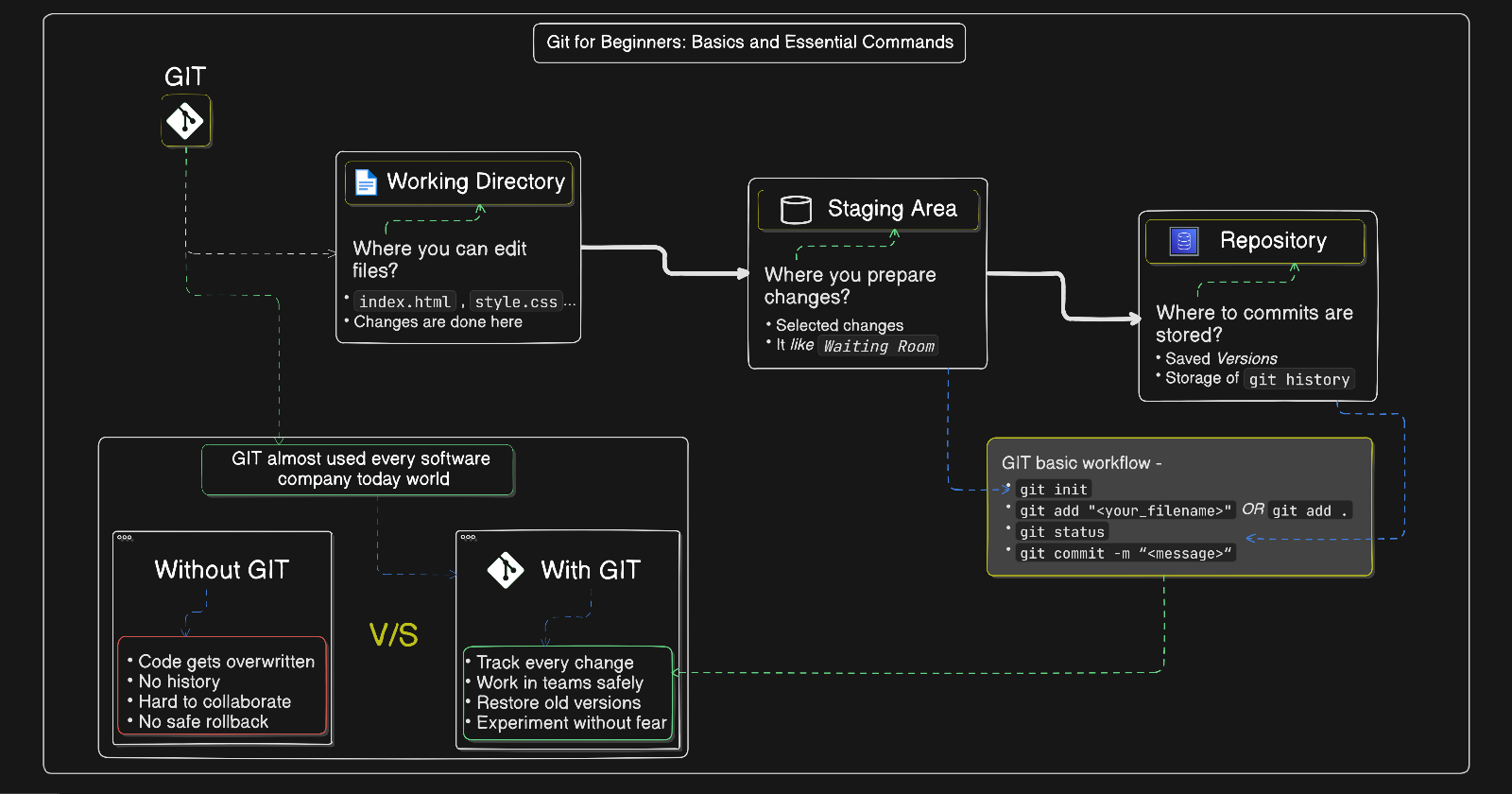
❗ Why GIT is present?
Easy & remove tough work for developer as managing & check track from into development process.
Git as Distributed Version Control System
Every developer has a need full copy of the project with history of code file what updates in that.
GIT node dependent on one single central server
Also able to work offline & later sync with others
GIT —> has user control with collaboration power
What is GIT?
Git is a —> Version Control System
Git is a tool that helps you to track changes in your code and manage versions safely.
GIT—> time machine for your project codeHistory Tracker
Backup system with memory
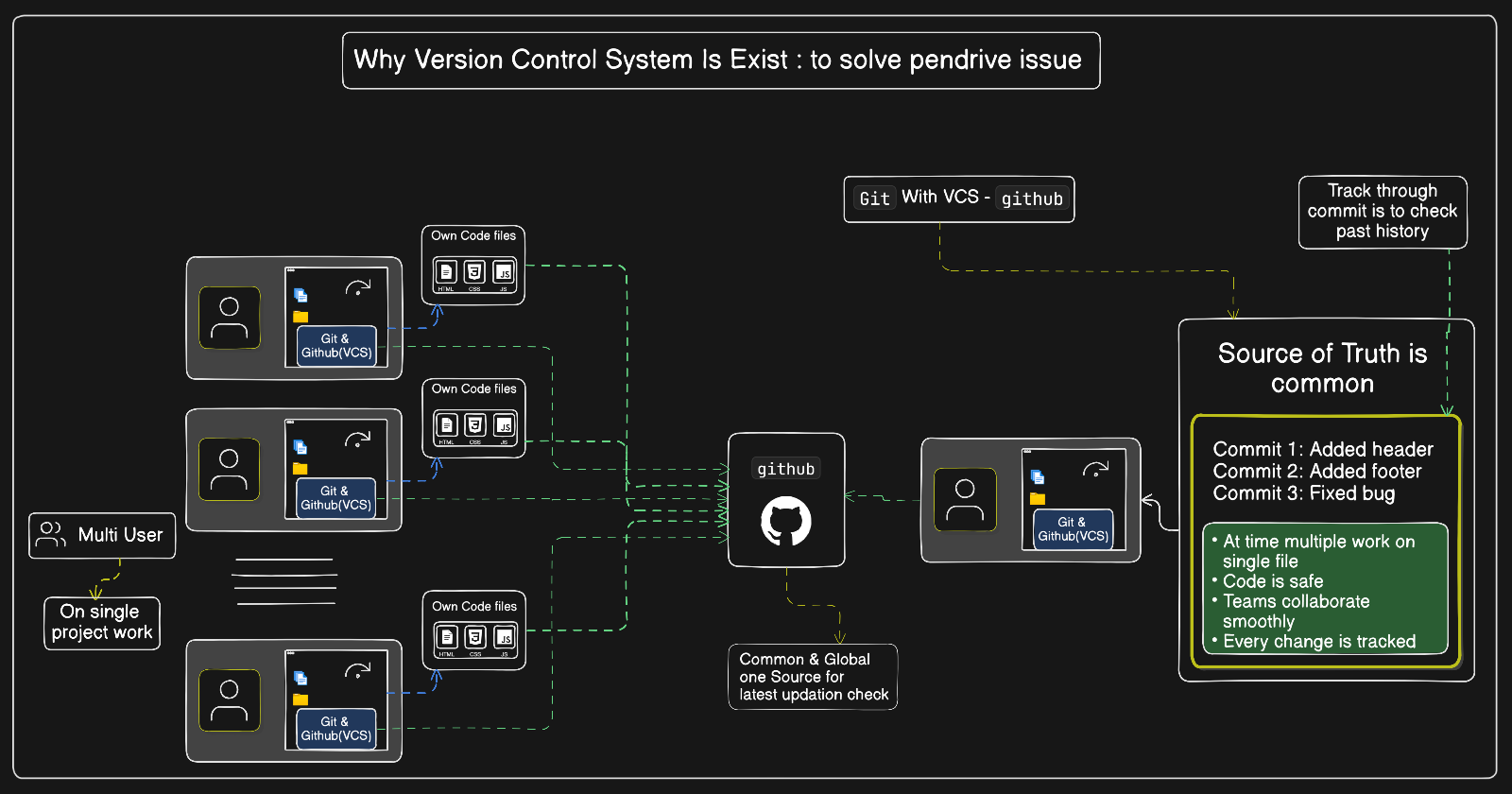
In GIT each commit has saved info as:
What will be changed?
Who that changed it?
Which time to change it?
Why Git is Used?
GIT concept can easily solve real developer problem -
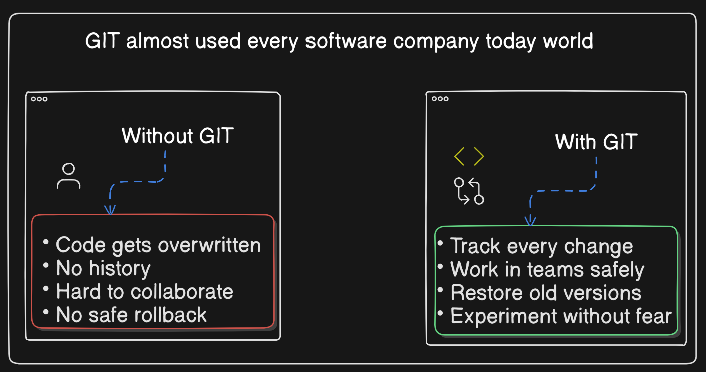
GITalmost used every software company in modern world.Git tracking files are also store in local storage.
GIT Basics and Core Terminologies
Repository (Repo)
Repo —> is your project folder that git tracks & for storing,
Files,History,Versions
Initialize git -
git init
GIT can created a hidden .git/ folder (without start tracking).
Commit
Commit —> snapshot of your project.
It includes - Author, Timestamp, Message, previous commit
Example - A commit is like checkpoint in a game
git commit -m "Added homepage with html & css code file"
Branch
Branch —> a separate line of work.
It used for - New features, Testing to fixes bugs
Example - Default branch —> main
HEAD
HEAD —> pointer to latest commit of current branch.
Head shows where you are currently in history.
Git Workflow -
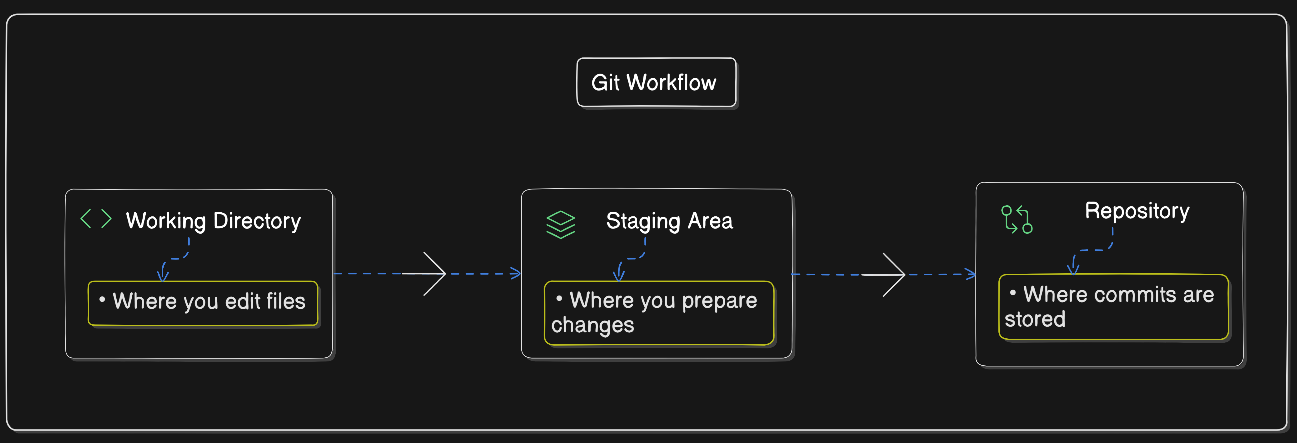
Common Git Commands
Simple project in VS Code & workflow of that -
- Create project —> Start Git —> Make changes —> Save versions —> View history
Create project & initiate that -
create folder
my-projecton computer & open with vscodecreate
my-project/index.html
In terminal of vs code -
Initialize Git
git init
Git is now activate for tracking.
Hidden .git folder is automatically created
git init—> Initialized empty git repository
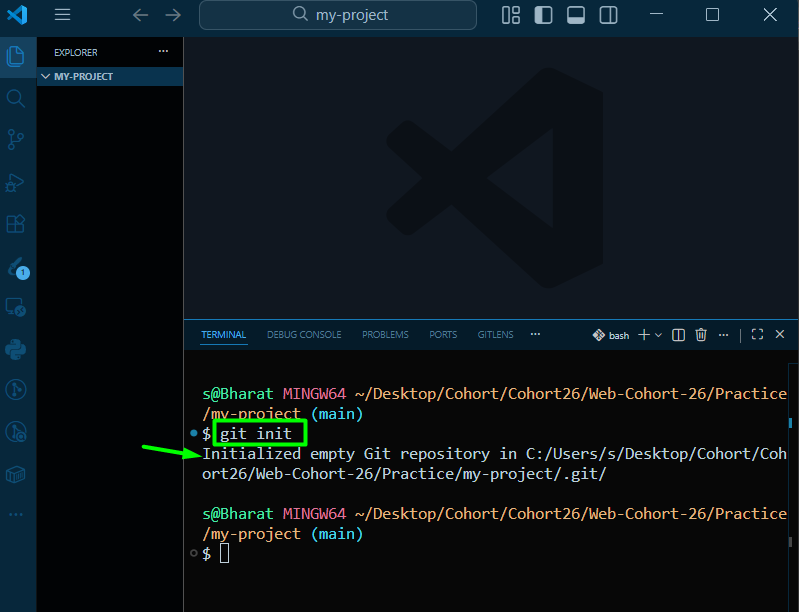
Git → will now start to track project.
Local Repository Structure -
my-project
│
├── .git
├── index.html
.git folder its brain of our GIT —> Never delete it.
Check Git Status
git status
git status —> Check status of git
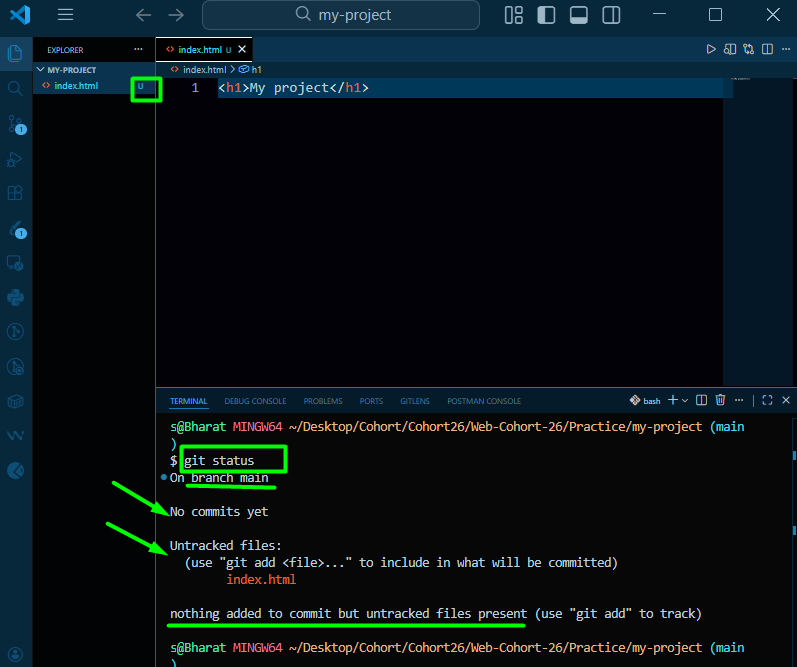
U - Untracked files —> “index.html” you will see the file but its not tracking it yet.
Add file to Staging Area
git add index.html
git add <file_name> —> single file add for staging area
- - OR- -
git add .
git add . —> all files add for staging area
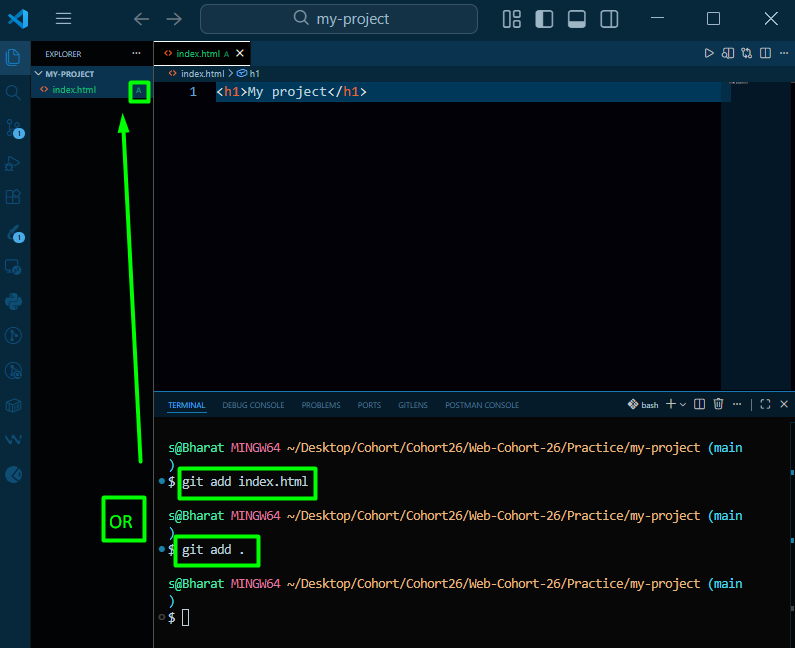
git add <file_name> OR git add . —> file is ready to be saved.
Make first Commit
Commit same as a save point in game like checkpoint.
git commit -m "Inital project heading"
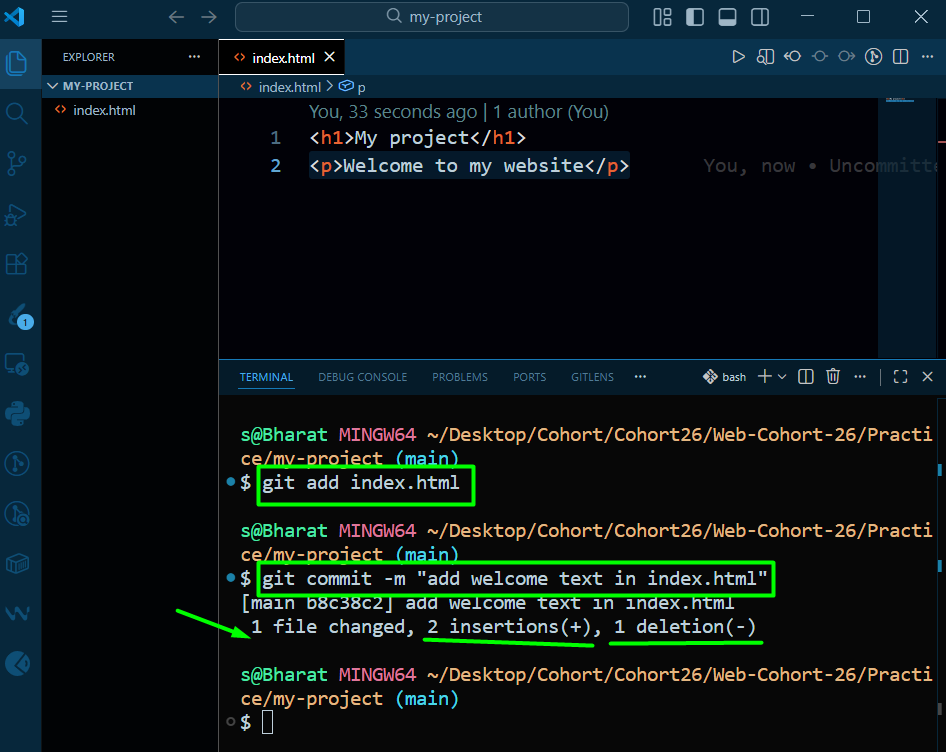
git commit -m “<message>“ —> that process of save through meaningful message
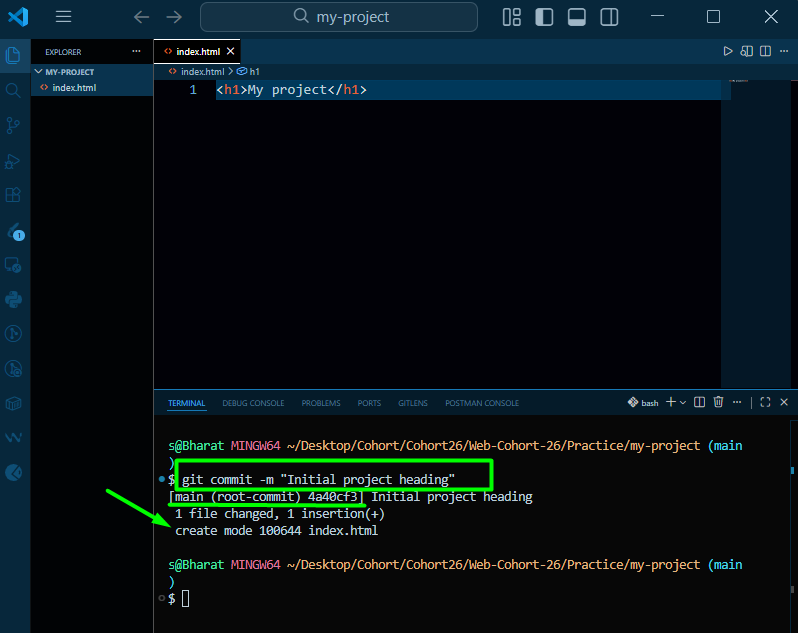
Make a Changes -
Through checking status see all info about that project
Edit
index.html& check status
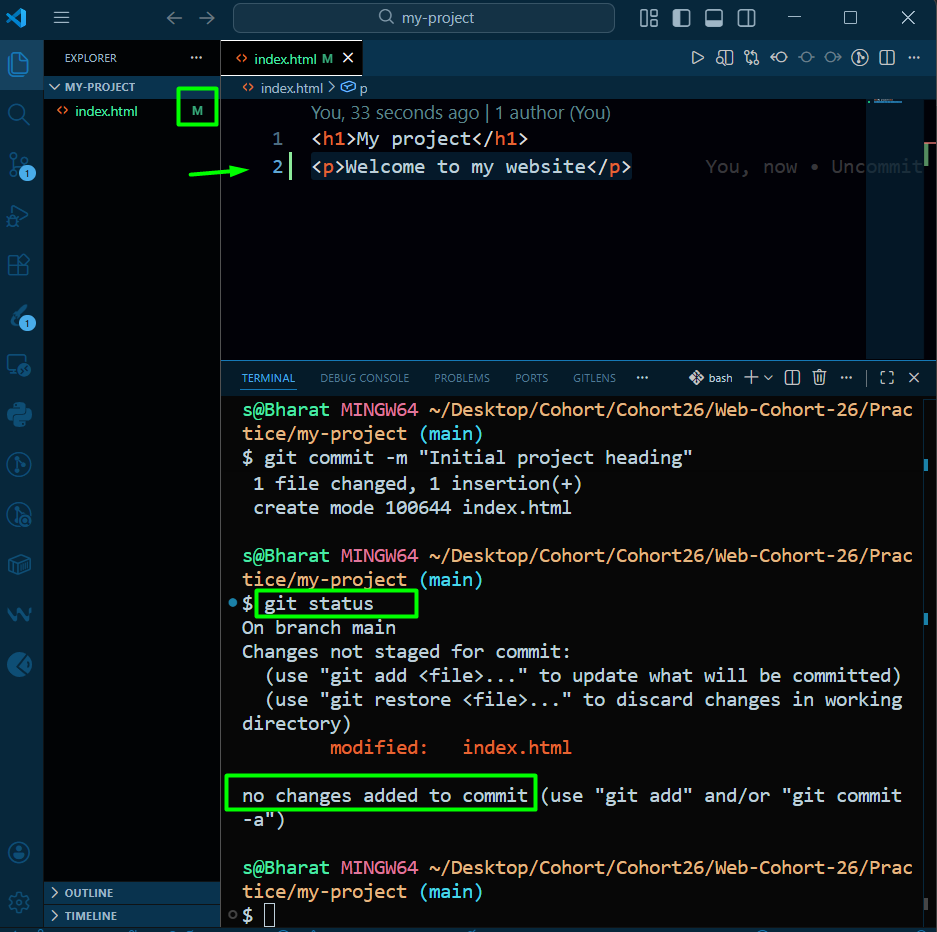
M - Modified files => “index.html” you will see commit again, it’s our new version that saved.
View History
git log
git log—> remember that all activates
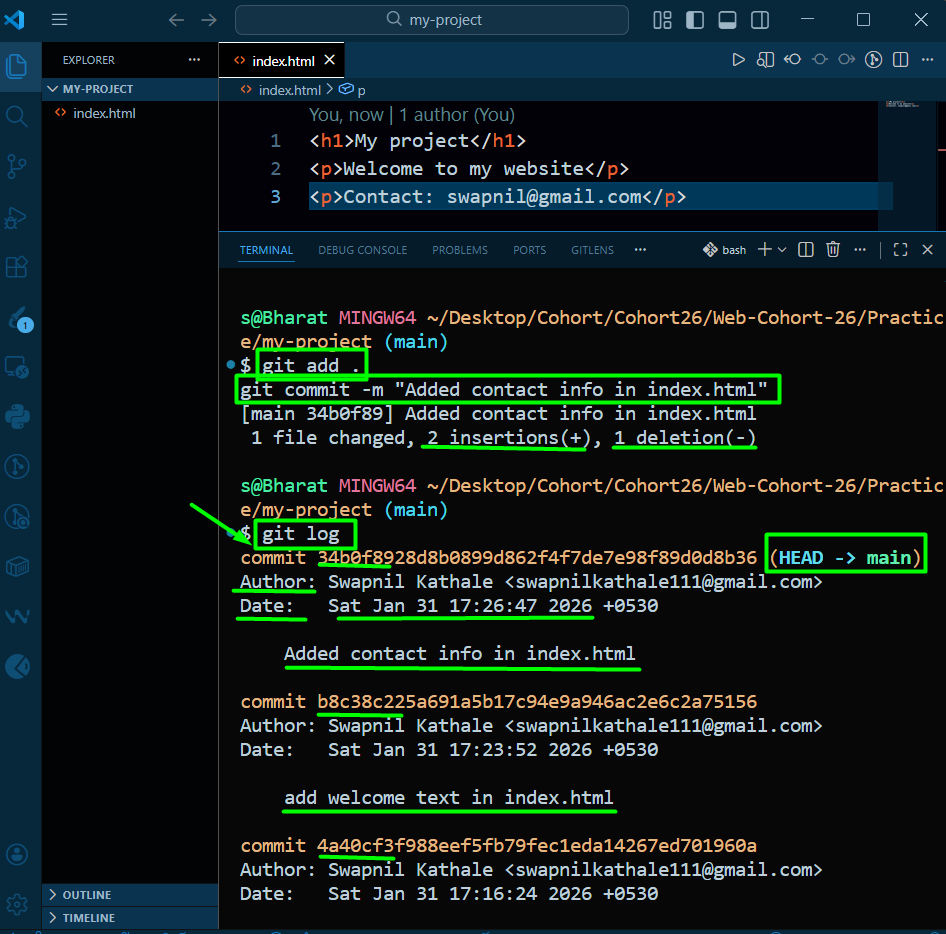
GIT —> can remembers every version.
Conclusion
Git Workflow -
1] Initialize Git —> git init —> creates .git/ folder
2] Check status —> git status —> changed, staged, untracked files
3] Add files —> git add . —> staging area
Git, remember this change & file moves to staging area.
Example -
git add file.txt
4] Commit —> save this snapshot.
- Example -
git commit -m "Added login feature"
5] log —> git log —> shows commit history